
Getting Started Guide: EndZoneIntel for High School Coaches
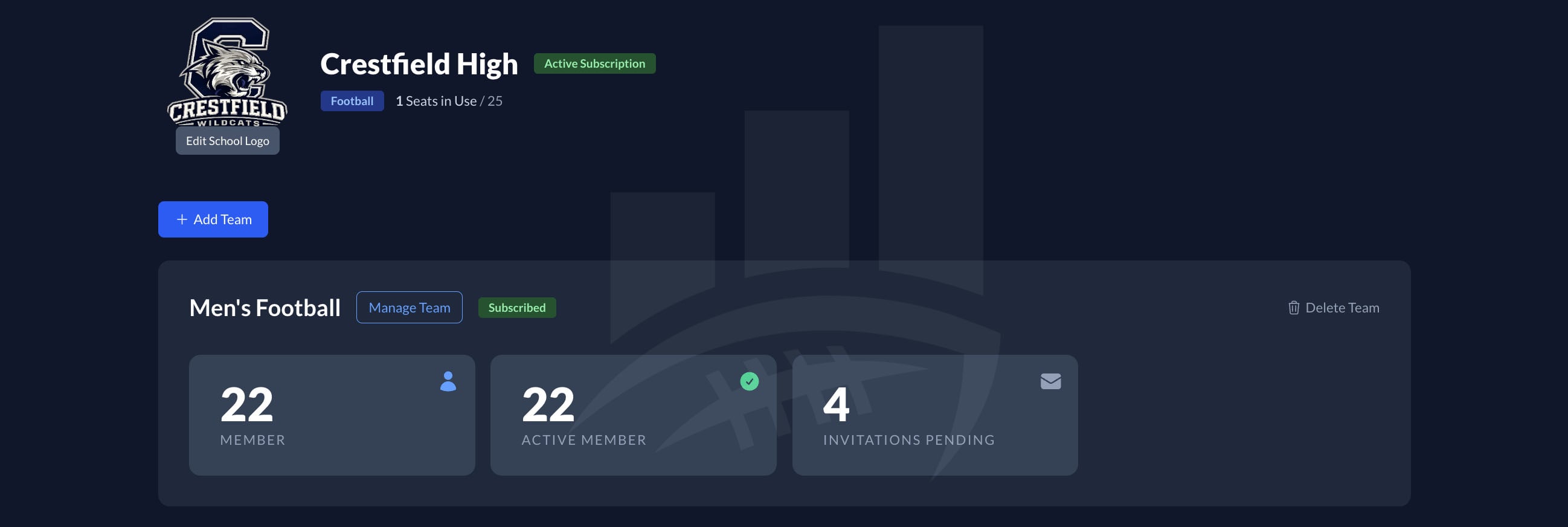
This step-by-step guide will walk you through how to get started with EndZoneIntel for your entire team.
EndZoneIntel gives high school coaches the tools to help every athlete better understand their college football opportunities. Through Best Fit Reports, athletes see where they project as an Impact, Contributor, or Stretch prospect, supported by detailed data explaining why they fit at each school/level. For younger athletes who are not eligible yet to start the recruiting process, these reports are Projection Reports to help them understand their current trajectory. Coaches receive individualized reports for everyone on their team, while athletes also get EndZoneIntel profiles to showcase their athletic resumes and access college team profiles that reveal which programs consistently develop positional talent and which rely more heavily on transfers. Together, these resources help coaches and athletes make more informed decisions about development, exposure, and college fit.
Step 1: Request a Team Account
Contact us at support@endzoneintel.com to request an EndZoneIntel team account. Our team will work with you and your athletic department to understand your program’s needs and identify the plan that is the best fit for your team.
Step 2: Register
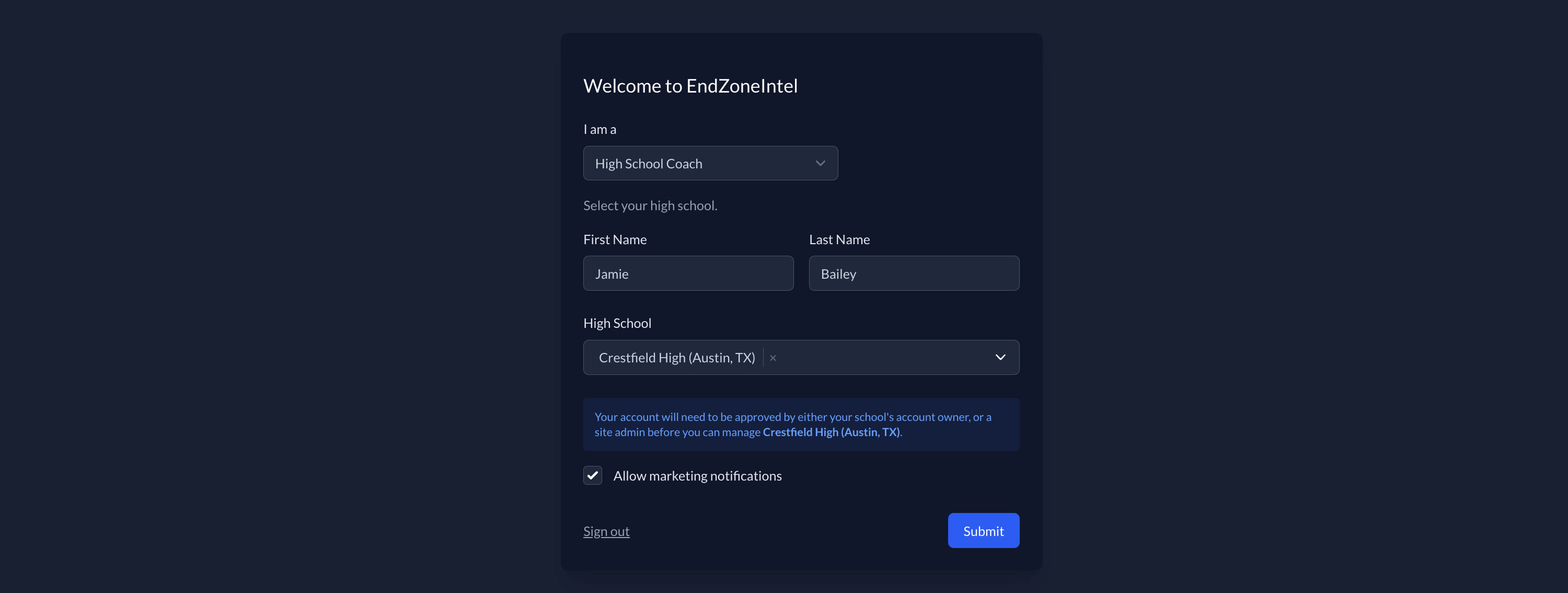
Register your EndZoneIntel account at https://endzoneintel.com/auth/register. Specify that you are either a High School Coach or Athletic Director depending on your title. Select your High School. This will send a request to an admin for approval to assign ownership of this high school's team to you to manage. If using an email address outside of your school's email to register, you will be asked to provide additional information before your request is approved. You will be notified by email once you are approved.
Step 3: Manage Your Team
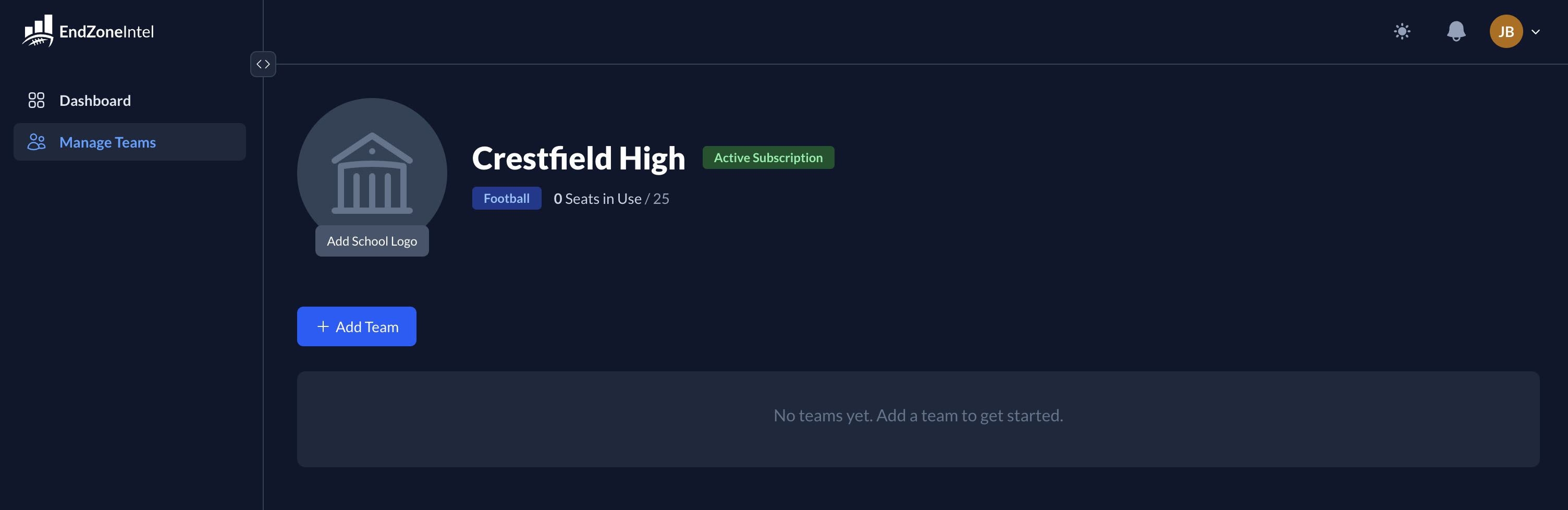
When you log in after you have been approved to manage your team, a new link will appear in your toolbar -> Manage Teams. This is where you will find all team administration options such as inviting players. Click on "Add School Logo" and upload a logo for your team account.
Step 4: Add New Team
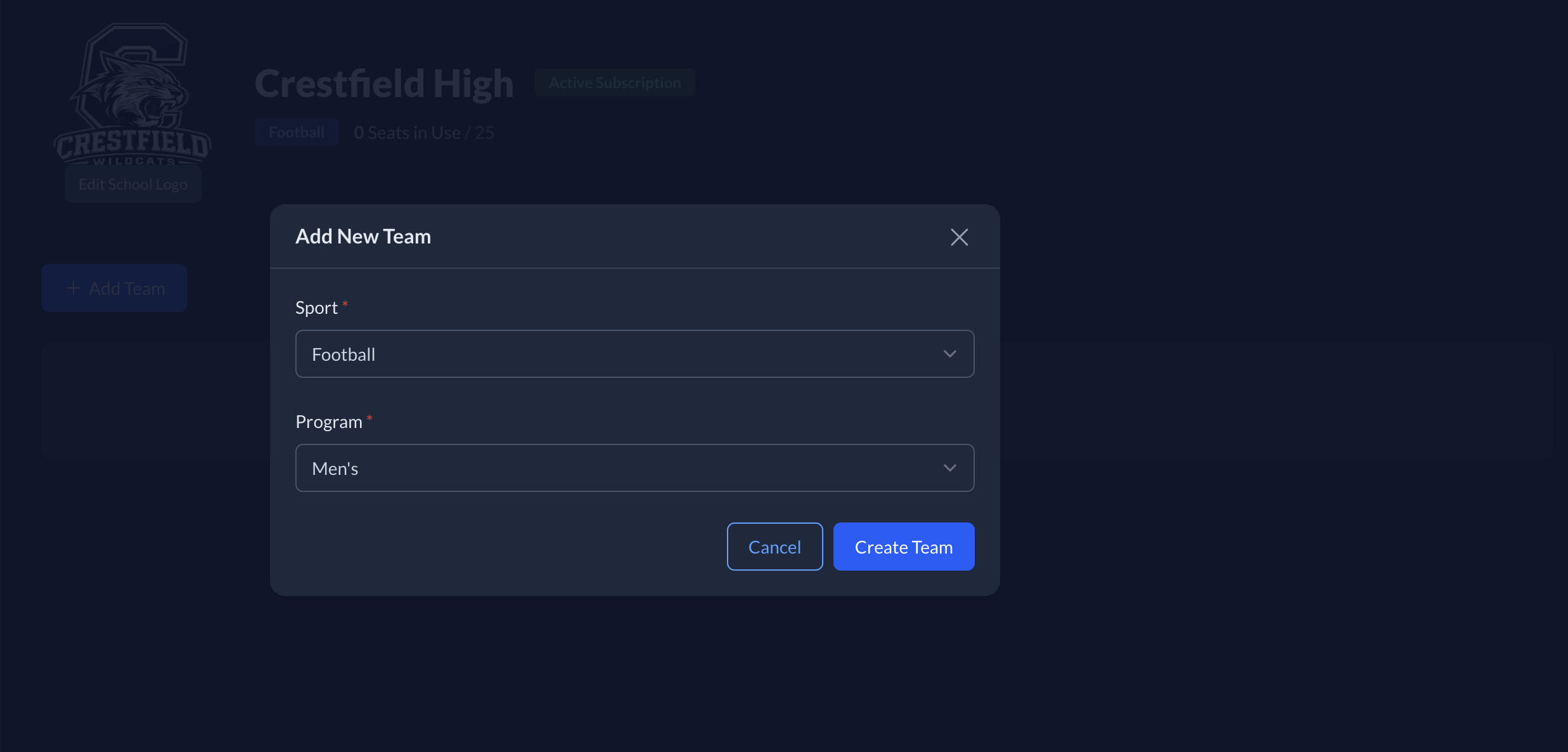
Click the + Add Team button to add your new team to manage. Select Football for the Sport and Men's for the Program. Click the Create Team button to finish.
Step 5: Invite Players
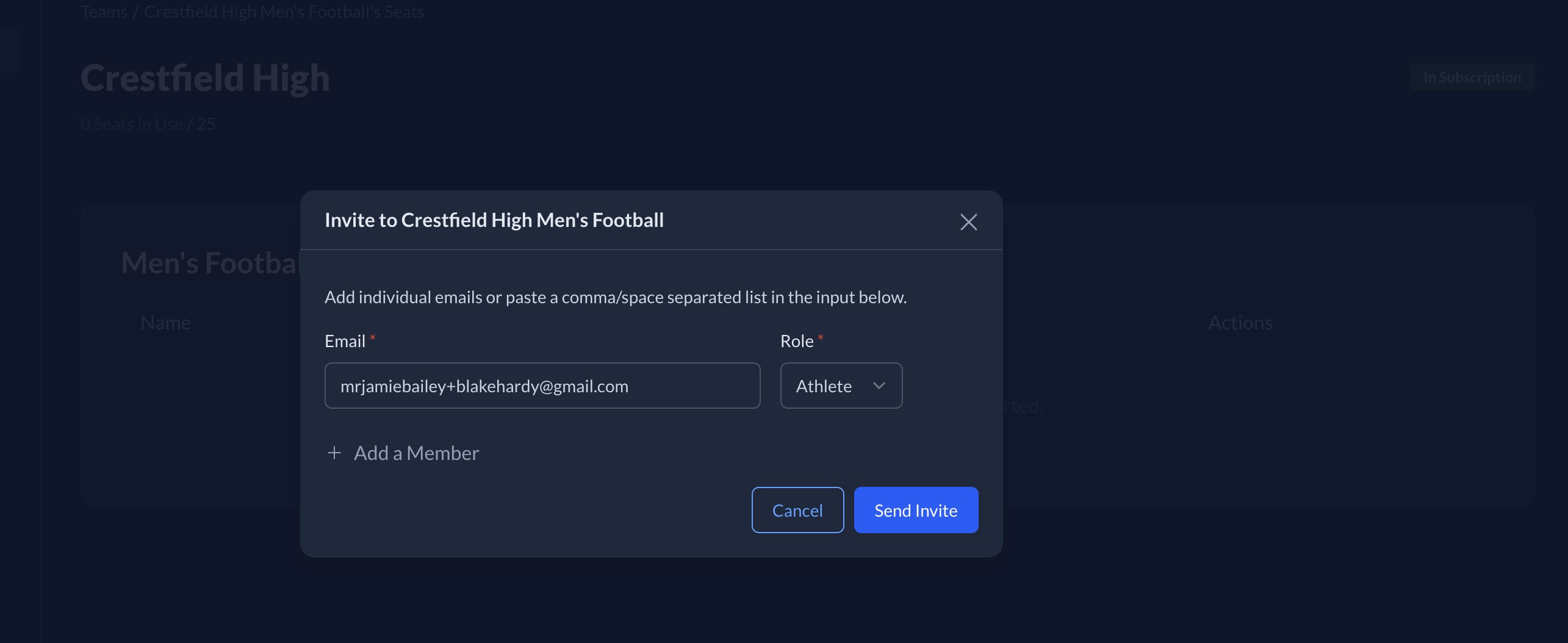
Click the Manage Team button, then click +Invite Team Member to invite a player to join EndZoneIntel under your team. Fill out their email address and select Athlete as their role. Click Send Invite to send the invitation.
Step 6: Request a Best Fit Report
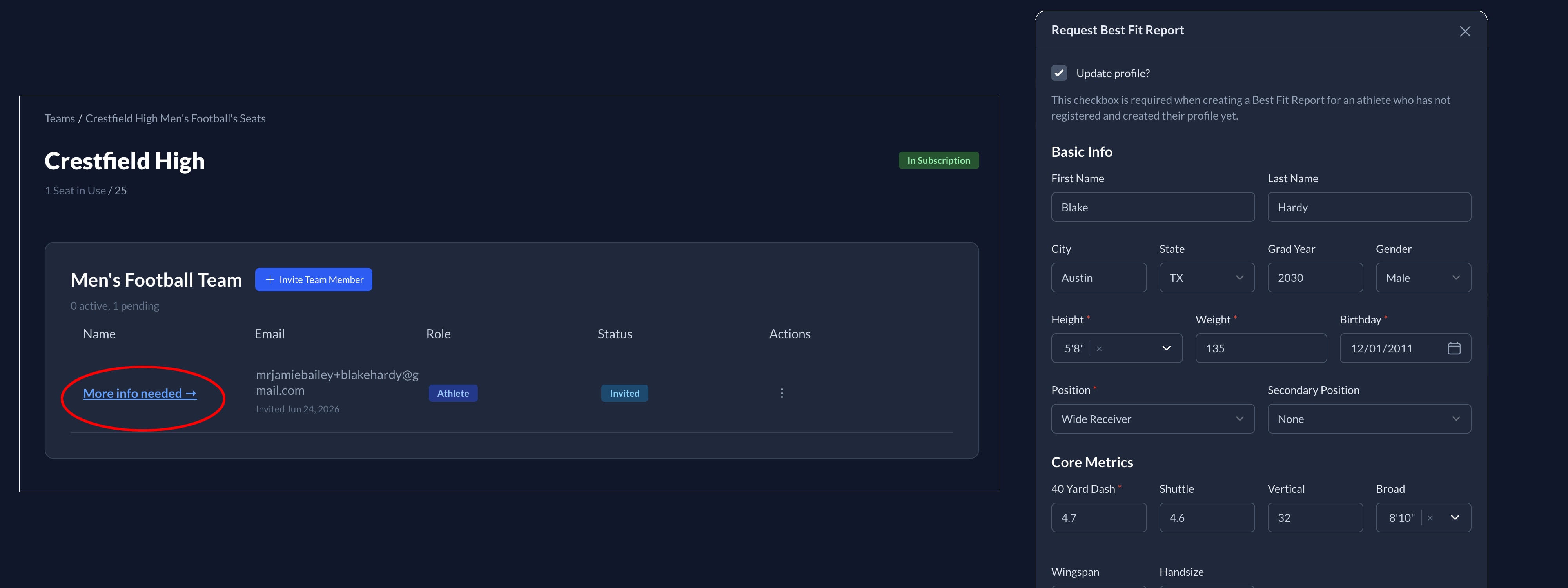
Basic information about a student-athlete is required in order to get a Best Fit Report for that athlete. Click the More info needed -> link and fill out the basic information. Fields marked with a red * are required in order to get a Best Fit Report. The more information you can provide, the better the Best Fit Report. Once information has been entered in for a student-athlete, a Best Fit Report will be automatically requested. Reports can take up to two days to generate. A notification will be sent once a report is ready to view. *Note: 40 Yard Dash, Shuttle, etc. should be accurately measured and not exaggerated to create a valid Best Fit Report.
Step 7: View a Best Fit Report
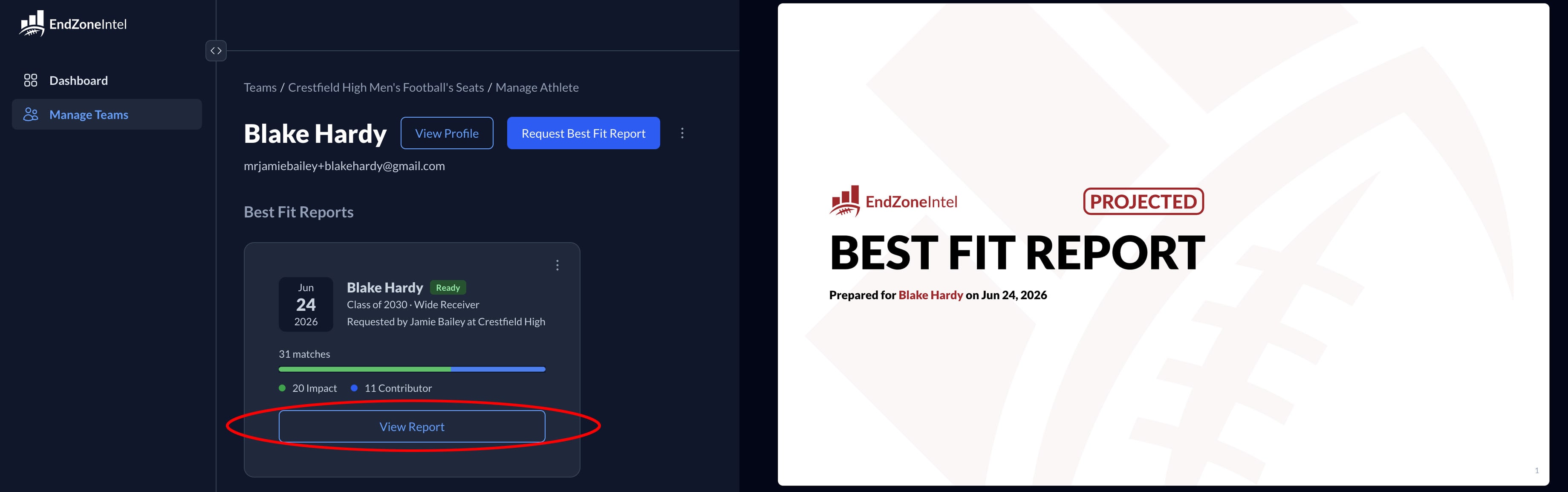
Once a Best Fit Report has been generated and published, a new button will appear under that athlete's information - View Report. Click this button to view this athlete's report. *Note: If an athlete is a Sophomore or younger, their report will be labeled PROJECTED. This means that their measurables (i.e. height, weight, 40 yd time, shuttle) are calculated to where they are projected to be when they are a Junior in high school. This shows you their trajectory based on their current age and stats.
Student-Athlete Account
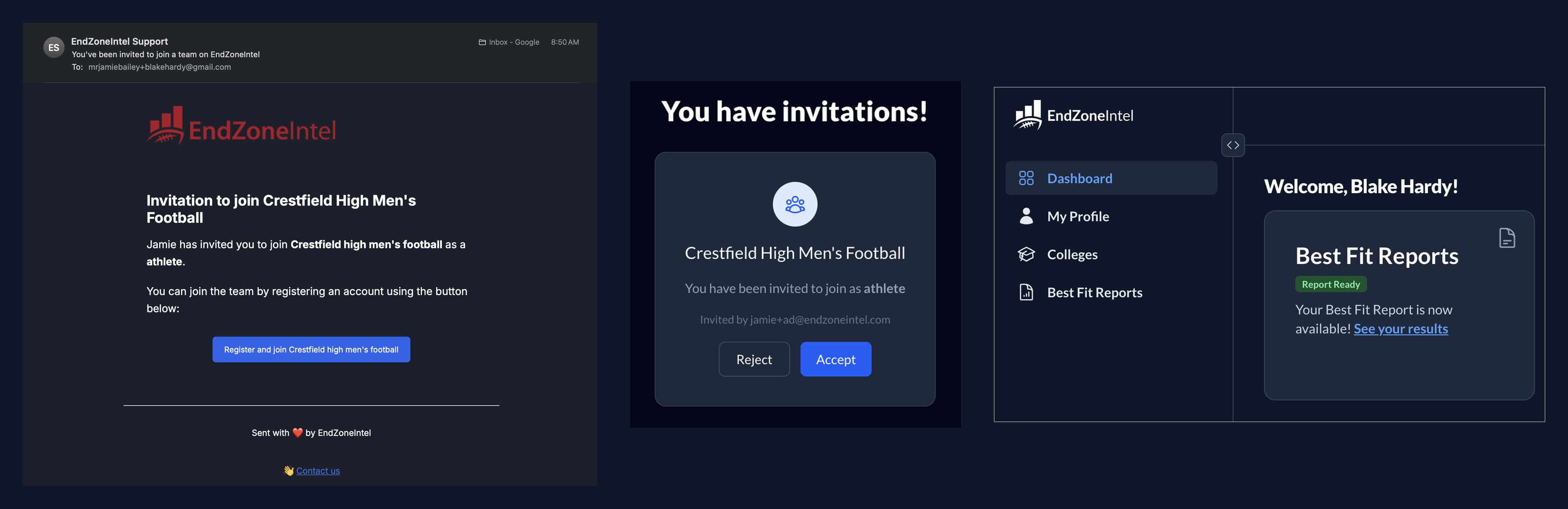
Student-athletes will be able to join EndZoneIntel and your team from the invitation automatically sent via email. Once they have created an account and accepted your invitation, they will be able to view their Best Fit Reports, browse college profiles, and take advantage of all of the features of EndZoneIntel.
Support
If you have questions or issues, contact us at support@endzoneintel.com.
 EndZoneIntel Staff
